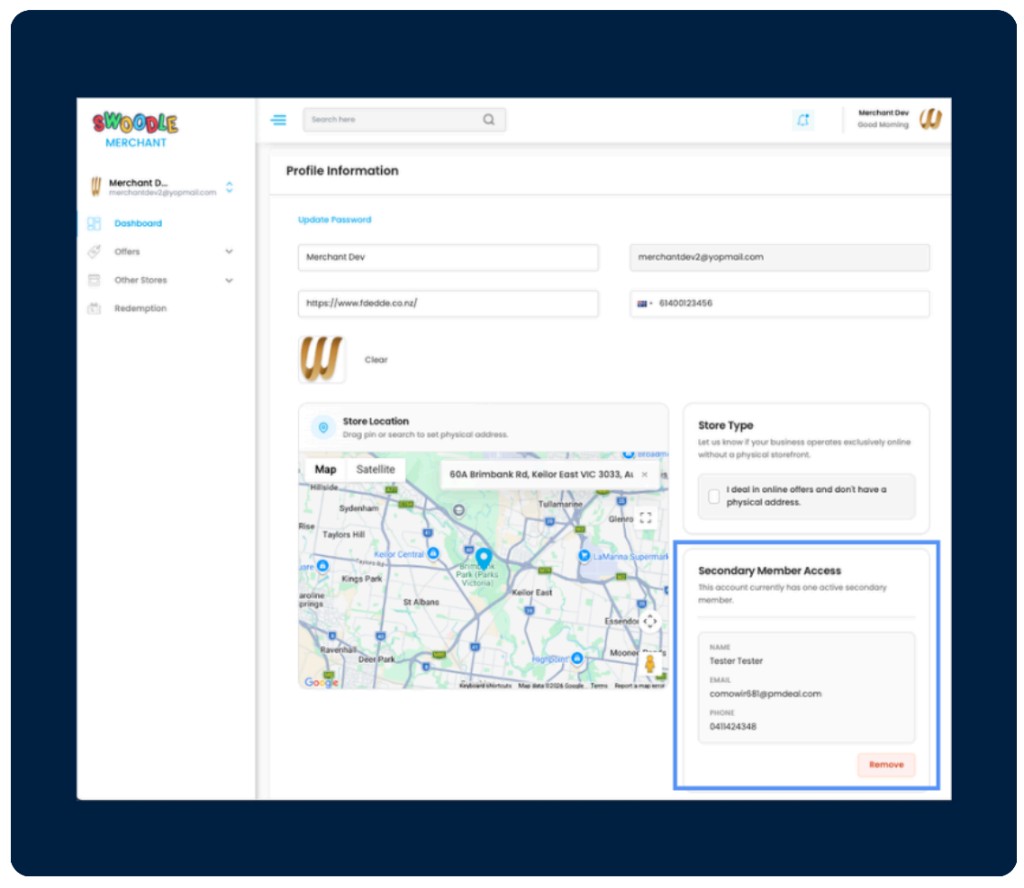
How to Set Up Secondary Access
Learn how to securely add secondary users to your Swoodle Merchant Portal so your team can manage offers, view account activity, and support day-to-day operations.
-
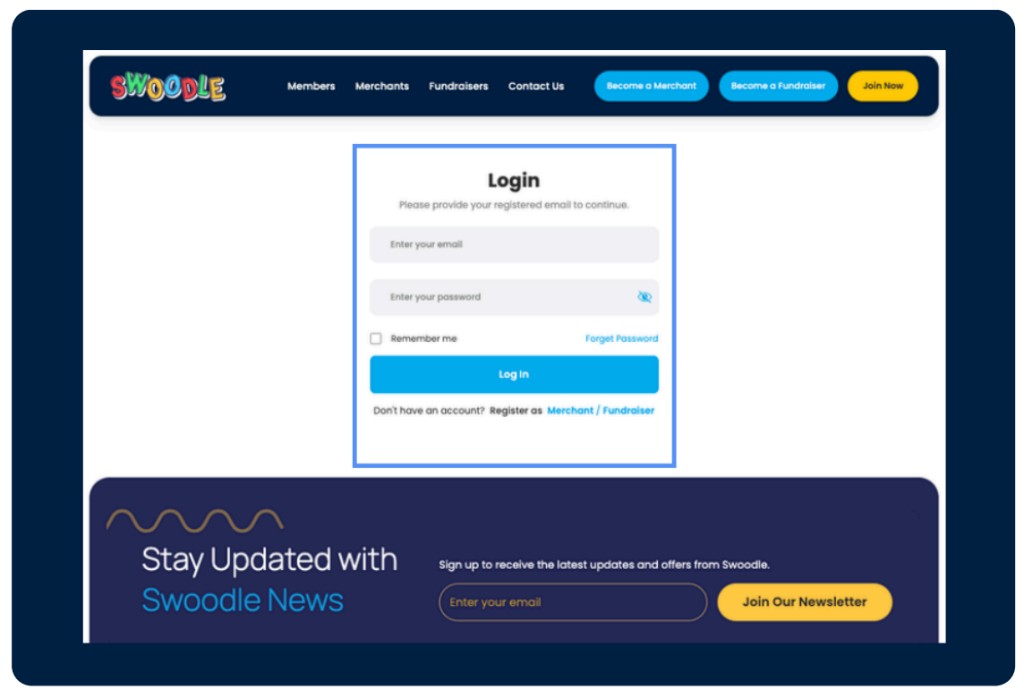
Step 1: Log in to the Merchant Portal
Enter your registered email and password, then select ‘Log In’ to open your Dashboard.
-
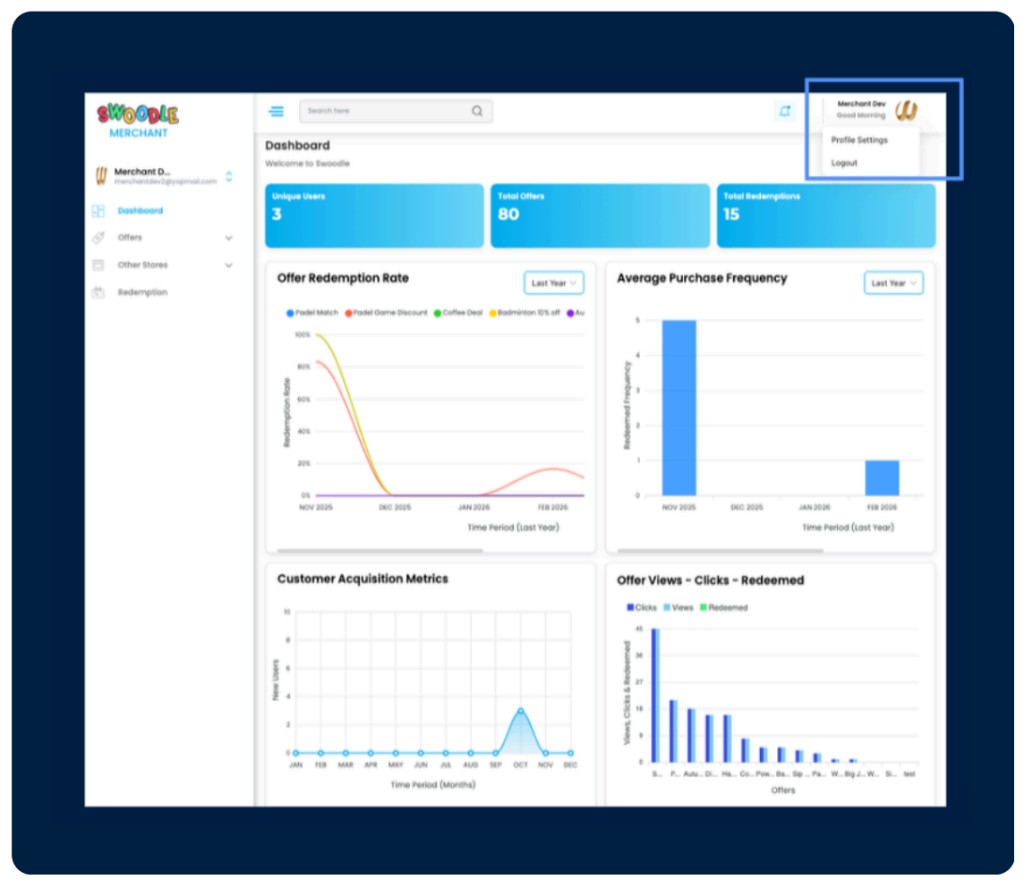
Step 2: Open Profile Settings
Select your business name and logo in the top right of the portal, then choose Profile Settings from the dropdown.
-
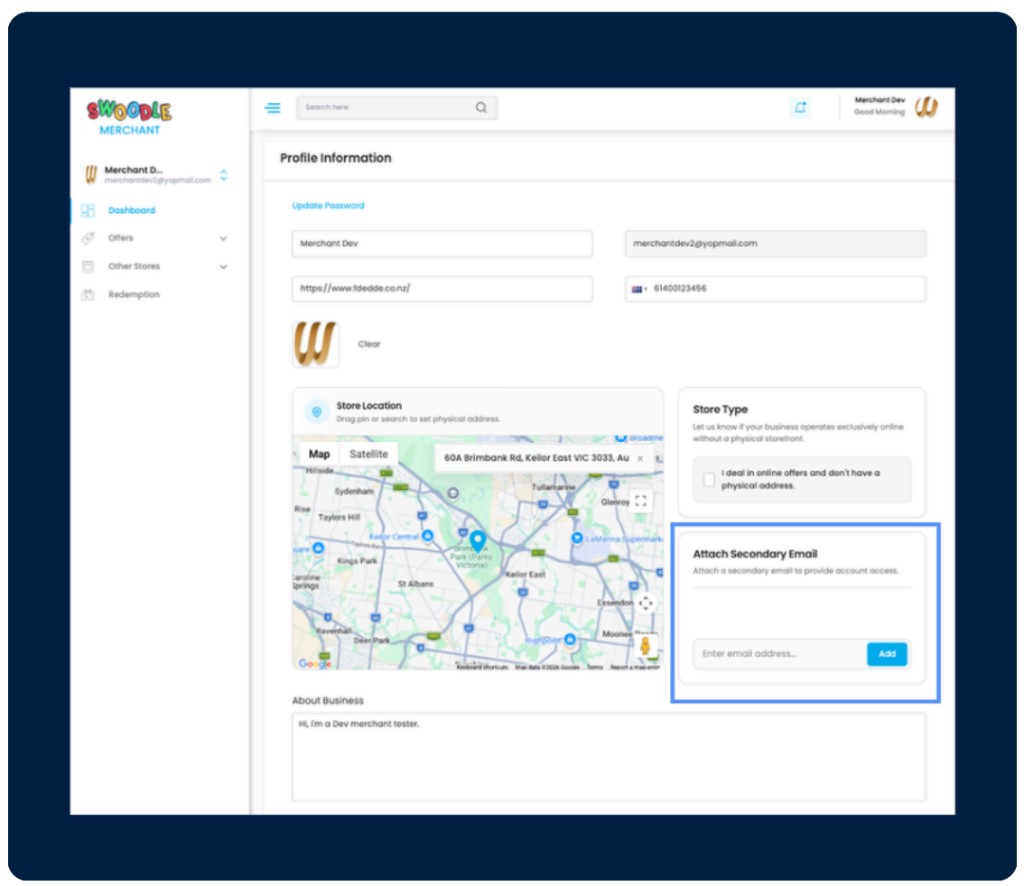
Step 3: Attach a secondary email
In Profile Information, find Attach Secondary Email, enter the additional user’s email address, then select Add.
-
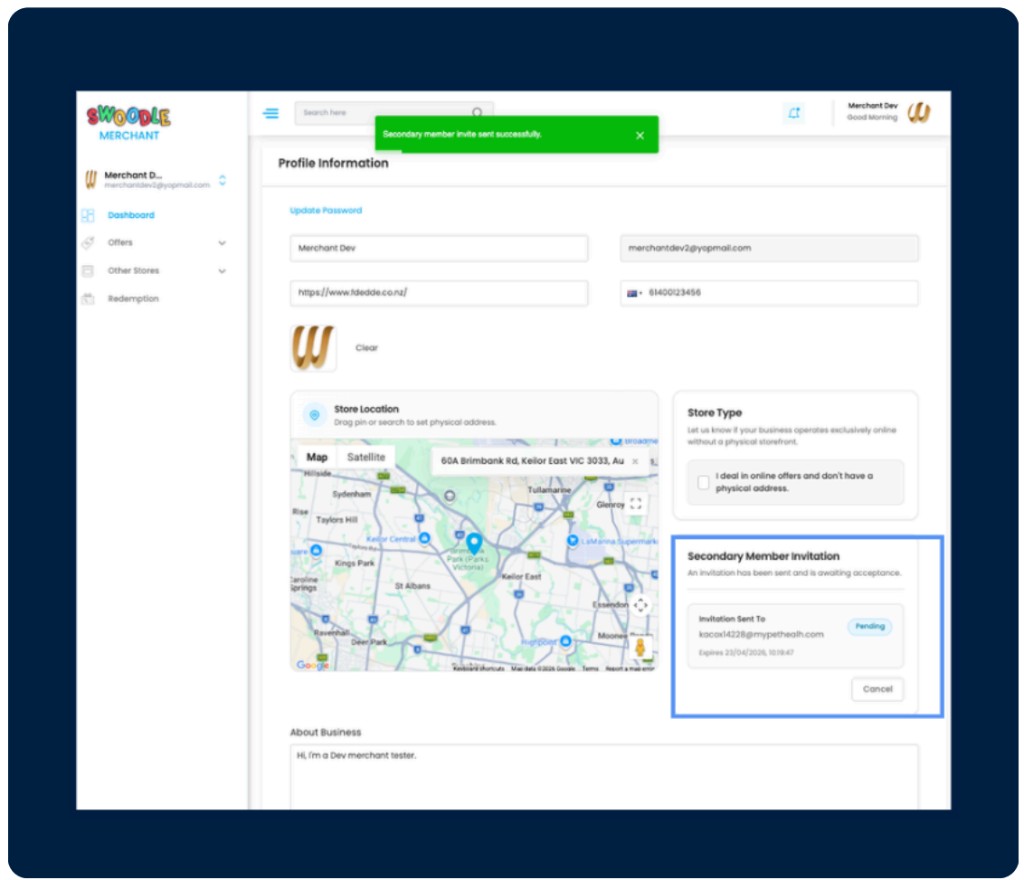
Step 4: User receives an invitation
The portal confirms the invite was sent and shows a Pending status until the new user accepts. They also receive an email invite to set up access.
-
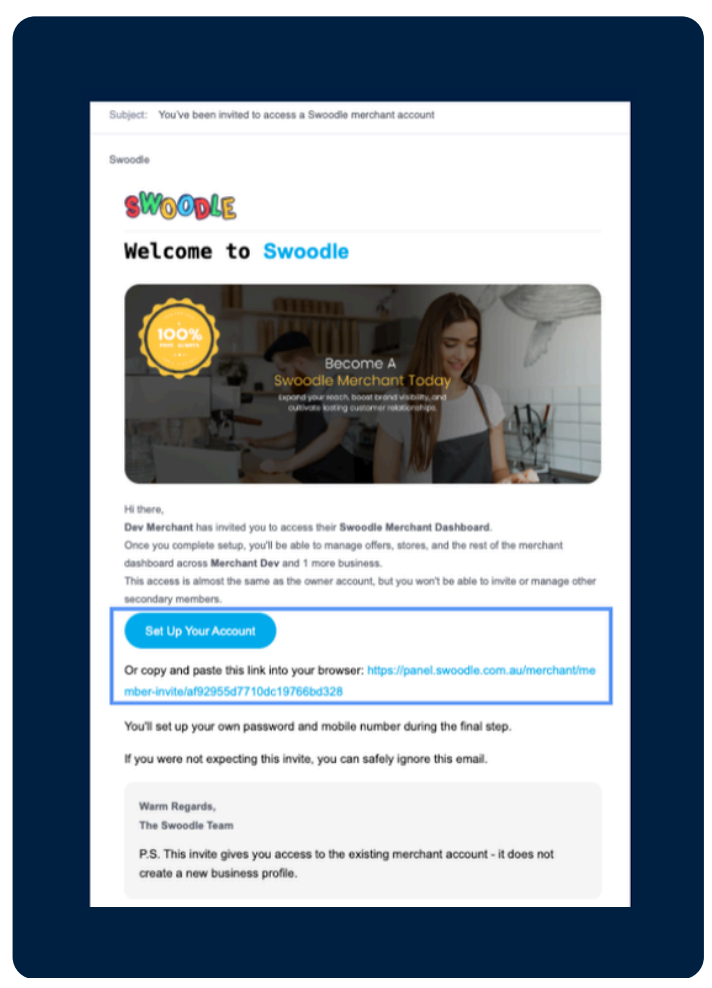
Step 5: Complete account setup
The invited user opens the email, selects Set Up Your Account, then enters their name and contact number, creates a password, and submits to activate access.
-
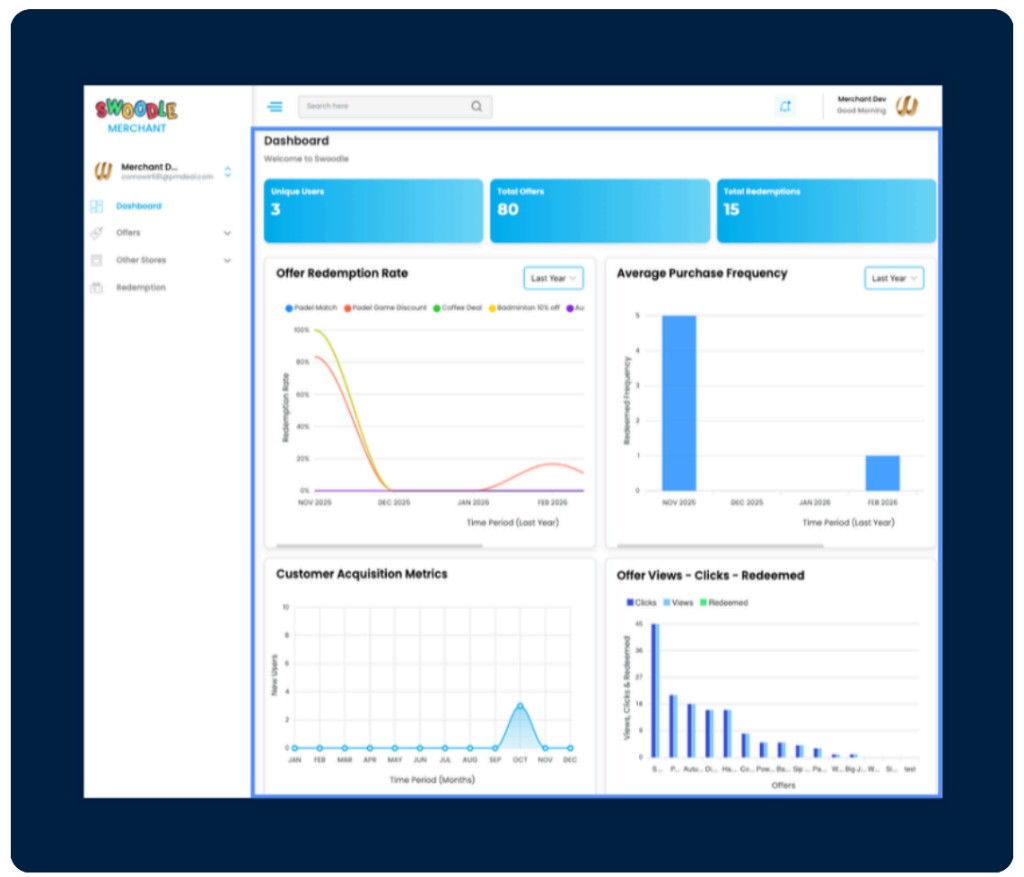
Step 6: Secondary access enabled
Once setup is complete, the secondary user can sign in and help manage offers and day-to-day portal activity.
-
Step 7: Manage or remove access
Return to Profile Settings anytime to review secondary users, or select Remove to revoke access.